Nzyme Setup Guide
This guide walks through setting up both the Nzyme Node and Nzyme TAP on Debian 12 (Bookworm).
Note
This guide was written for Debian 12 Bookworm but also works on Raspberry Pi OS 12 (Bookworm).
Nzyme Node Setup
Install Debian
Download the Debian 12 Bookworm ISO:
https://cdimage.debian.org/cdimage/archive/12.10.0/arm64/iso-cd/
Once the operating system is installed, update the system and install the required packages.
sudo apt update && sudo apt install -y openjdk-17-jre-headless postgresql-15Download the Nzyme Node package:
wget https://github.com/nzymedefense/nzyme/releases/download/2.0.0-alpha.17/nzyme-node_rpios-12bookworm-noarch-2.0.0-alpha.17.debInstall it:
sudo dpkg -i nzyme-node_rpios-12bookworm-noarch-2.0.0-alpha.17.debConfigure PostgreSQL
Launch the PostgreSQL shell:
sudo -u postgres psqlRun the following commands:
CREATE DATABASE nzyme;
CREATE USER nzyme WITH ENCRYPTED PASSWORD 'YOUR_PASSWORD_HERE';
GRANT ALL PRIVILEGES ON DATABASE nzyme TO nzyme;
\c nzyme
GRANT CREATE ON SCHEMA public TO nzyme;
\q
Configure the Node
Determine the IP address of the system we are hosting the node on:
ip a
Open the configuration file:
sudo nano /etc/nzyme/nzyme.confUpdate the following values:
-
PostgreSQL password

-
rest_listen_uriandhttp_external_uriwith the IP address fromip a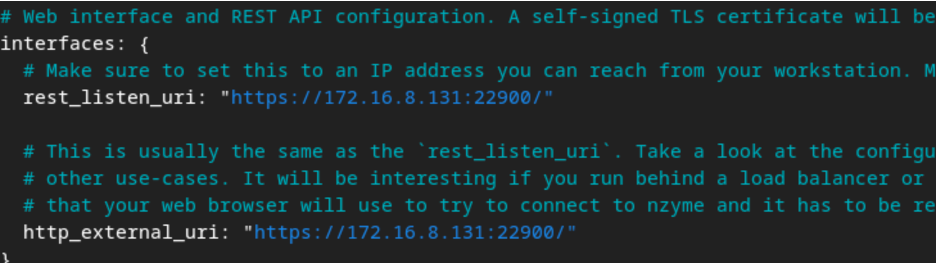
Save and exit the file using CTRL + X then Y
Initialize the Database
Run the database migration:
sudo nzyme --migrate-databaseStart the Node and Enable it as a Service
Enable the service:
sudo systemctl enable nzymeStart it:
sudo systemctl start nzymeVerify it is running:
sudo systemctl status nzyme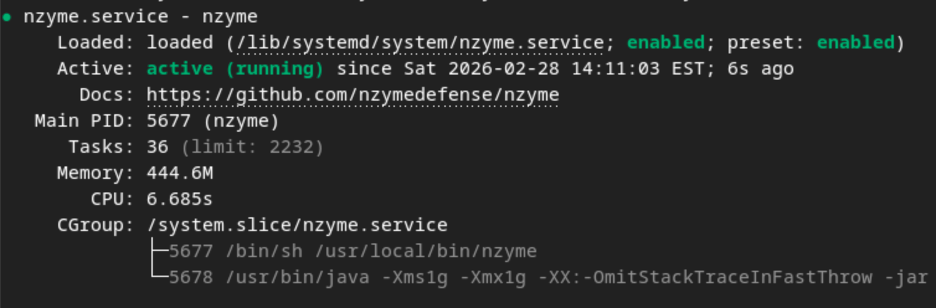
Access the Web Interface
After a few minutes the web interface should become available.
Connect to the Web Interface:
https://<NODE_IP>:22900
Create an administrator account.
The email address does not need to be a real email address.
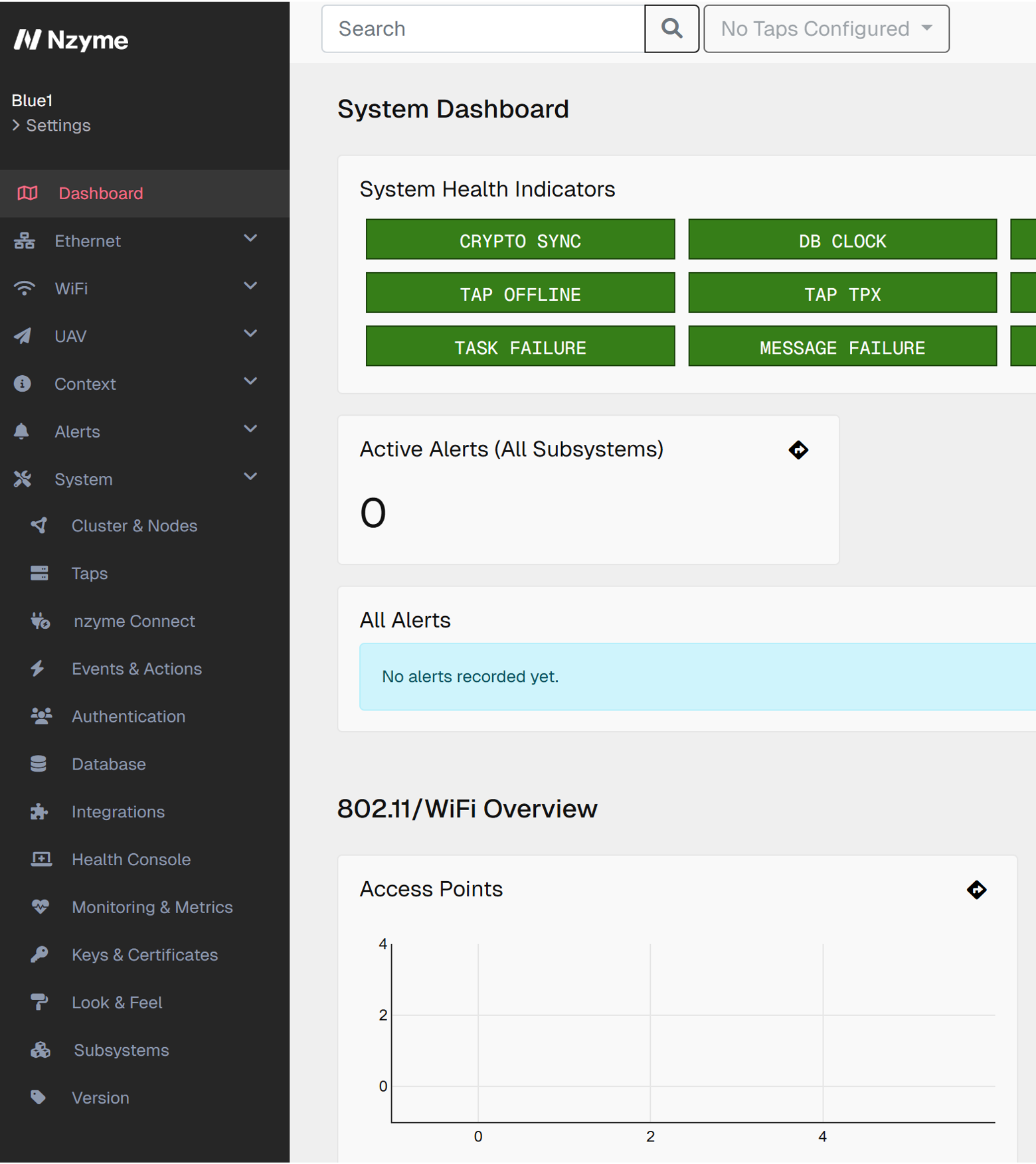
Once inside the web ui, you should see the landing page.
Create a TAP
From the web interface:
-
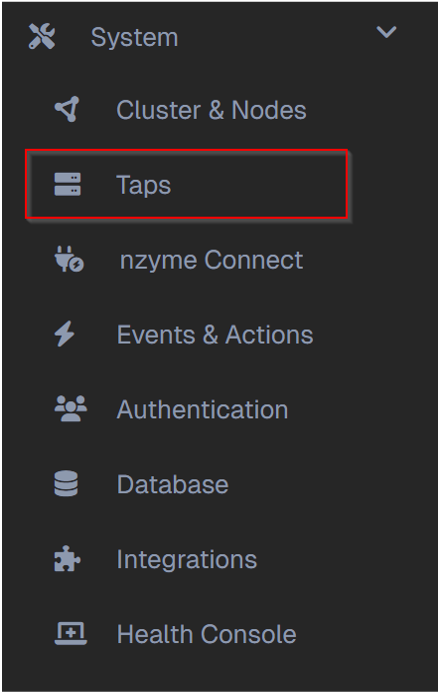
Expand System and Open TAPs
-
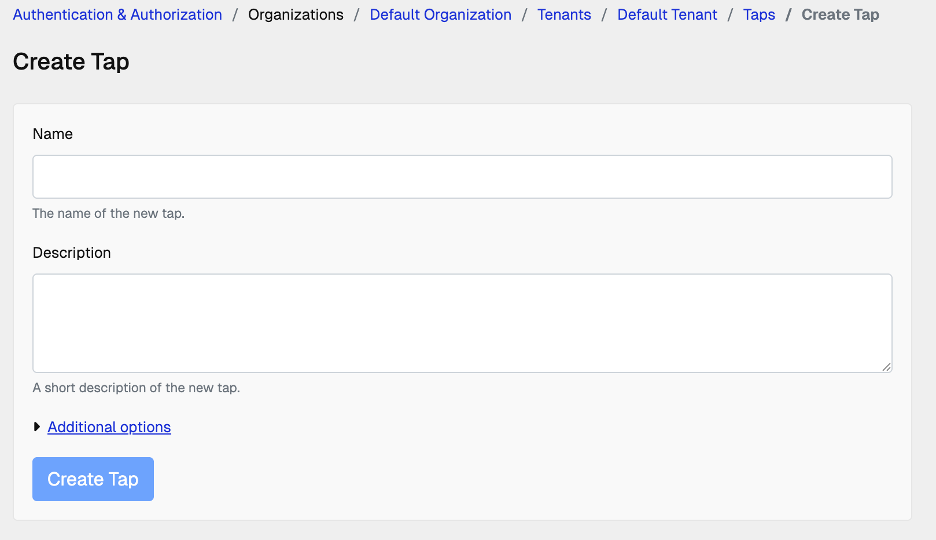
Click Add TAP

-
Give the TAP a name and description
-
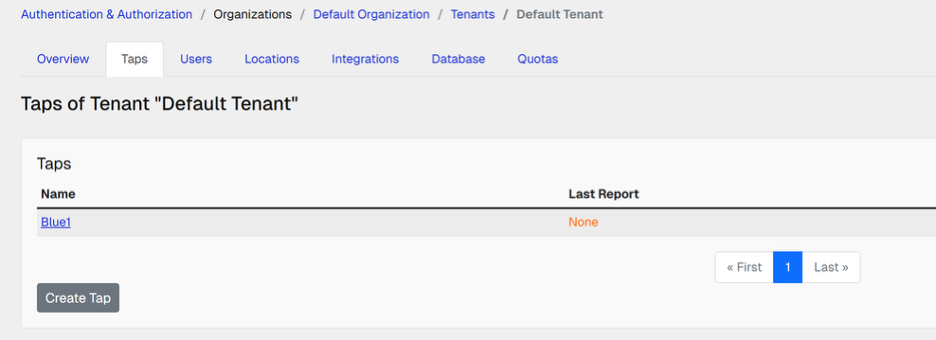
Open the newly created TAP
-
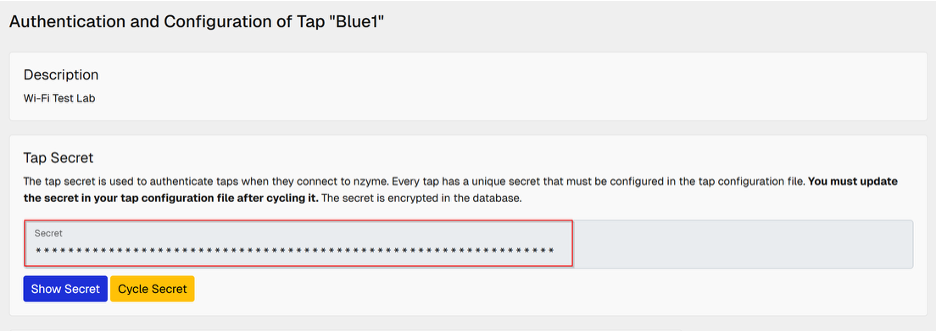
Copy the TAP Secret You will need this secret later when configuring the TAP.
Nzyme TAP Setup
For this lab, the TAP is installed on the same system as the Node.
Note
TAPs can also be installed on additional systems (such as Raspberry Pis) to increase wireless coverage.
Download the TAP package:
wget https://github.com/nzymedefense/nzyme/releases/download/2.0.0-alpha.17/nzyme-tap_rpios-12bookworm-arm64-2.0.0-alpha.17.debInstall it:
sudo dpkg -i nzyme-tap_rpios-12bookworm-arm64-2.0.0-alpha.17.debConfigure the TAP
Open the configuration file:
sudo nano /etc/nzyme/nzyme-tap.confUpdate the following fields:
| Setting | Value |
|---|---|
leader_secret |
TAP Secret copied from the web interface |
leader_uri |
IP address of the Node |
accept_insecure_certs |
true |

Why set
accept_insecure_certsto true?Nzyme uses HTTPS with a self-signed certificate by default. Unless you replace it with a trusted certificate, this setting should remain enabled in lab environments.
The configuration should look like the picture below once you input all the required information.

Save and exit the file using CTRL + X then Y
Configure Ethernet
Determine the interface information:
ip aYou will need:
- Interface name
- CIDR subnet

Open the configuration again:
sudo nano /etc/nzyme/nzyme-tap.confUpdate the Ethernet section using data from ip a:
ethernet_interfaces.<interface_name>- CIDR
- DNS servers
injection_interface
For this lab, the injection interface should normally be the same as the Ethernet interface.

Save the configuration.
Configure the Wireless Interface
List wireless devices:
iw dev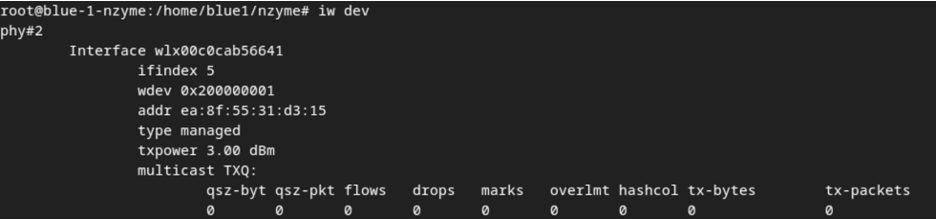
Record:
- Wireless interface name
- PHY number
Example:
Interface wlan0
phy#2
Check the capabilities of the adapter:
iw phy phy# infoReplace phy# with the PHY number reported by iw dev.
Verify which frequency bands the adapter supports:
the output is large and you will need to scroll through it.
- 2.4 GHz
- 5 GHz
- 6 GHz
Configure Regulatory Domain (Region)
Check the current regulatory domain (Region):
iw reg getFor this guide, set it to the United States:
sudo iw reg set US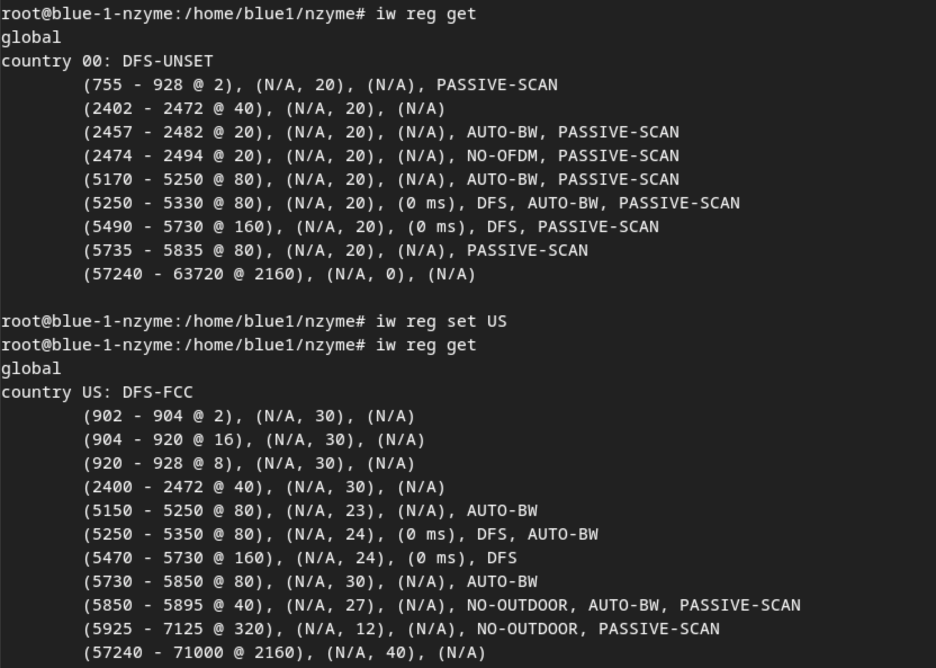
Configure Wi-Fi Monitoring
Edit the TAP configuration:
sudo nano /etc/nzyme/nzyme-tap.confLocate the wifi_interfaces section.
Update the interface name to match the output from iw dev.
Examples:
wifi_interfaces.wlan0
or
wifi_interfaces.wlx00c0cab56641
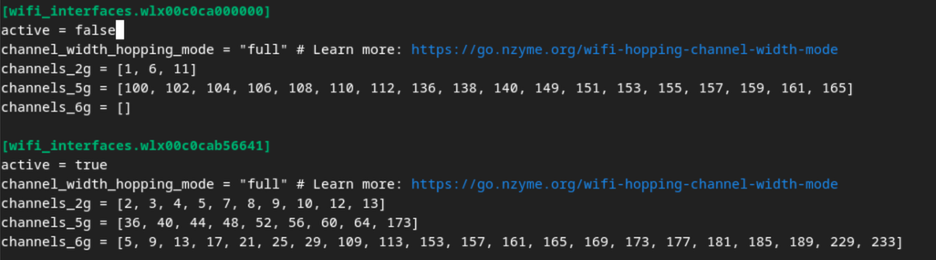
Using a Single Wireless Adapter
If only one adapter is installed:
- Set the unused interface to:
active = false
or comment out the unused interface entirely.
Copy the full channel list into the interface you are using.

Important
Verify that every configured channel is legal in your regulatory domain. Some 5 GHz channels available in other countries are not permitted in the United States.
Save the configuration.
Start the TAP
Enable the service:
sudo systemctl enable nzyme-tapStart it:
sudo systemctl start nzyme-tapVerify that it is running:
sudo systemctl status nzyme-tap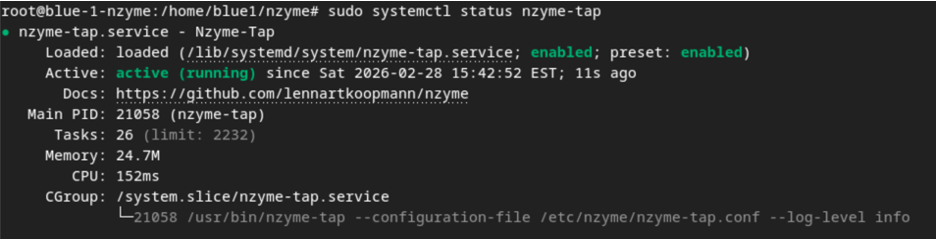
Verify Operation
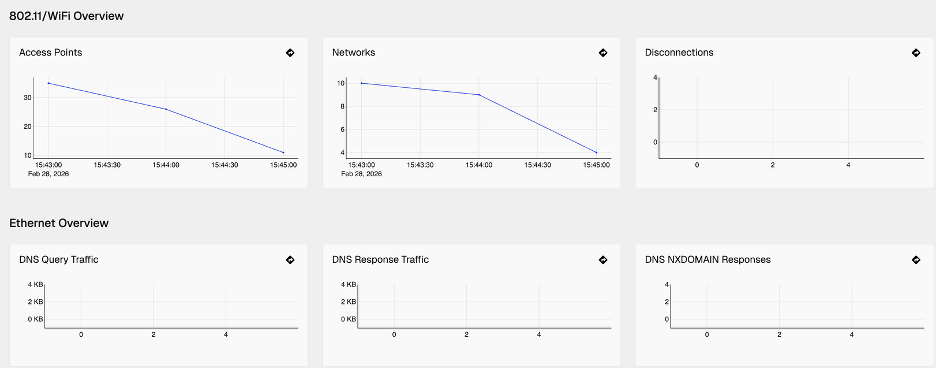
Return to the Nzyme web interface.
If everything is configured correctly, the TAP should appear as connected and begin reporting wireless activity.
Command Round Up
Show IP Configuration
ip aShow Wireless Interfaces
iw devShow Wireless Capabilities
iw phy phy2 infoShow Regulatory Domain
iw reg getSet Regulatory Domain
sudo iw reg set USConfiguration Files
Node configuration:
/etc/nzyme/nzyme.conf
TAP configuration:
/etc/nzyme/nzyme-tap.conf
Services
Node:
sudo systemctl status nzymeRestart:
sudo systemctl restart nzymeTAP:
sudo systemctl status nzyme-tapRestart:
sudo systemctl restart nzyme-tap- ← Previous
Workshop Lab Guide