Getting Started with the VM
Download the VM
Grab the workshop virtual machine for your hypervisor:
Ensure you have VMware, Virtual Box, or Qemu installed on your system.
Oracle Virtual Box
-
Save the zip file to your drive
-
Unzip
-
Create a new VM
-
Name the VM
-
Point the VM Folder to the folder you just extracted
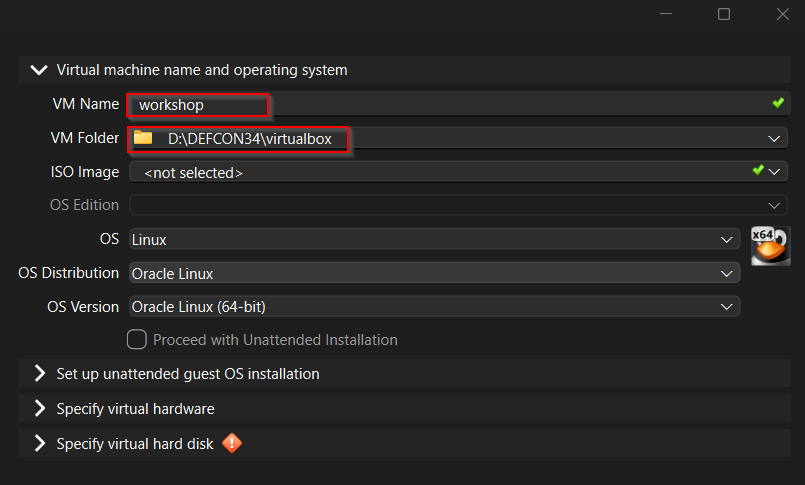
-
Select the OS Distribution,
Debian -
Expand the
Specify virtual hard disk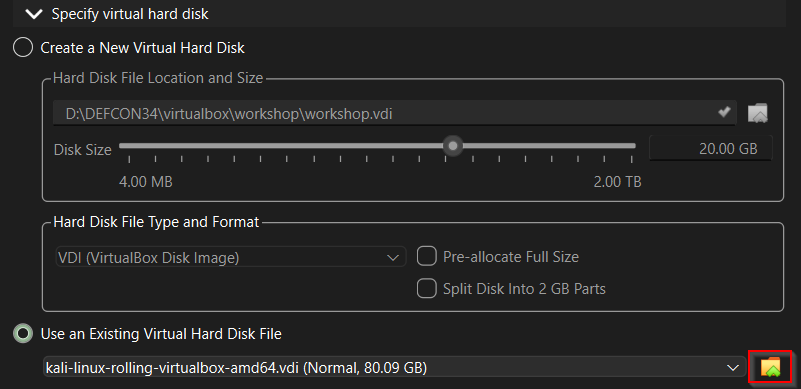
-
Select
Use an Existing Virtual Hard Disk File, click on the file icon to the right. Click on add and select the .vdi file.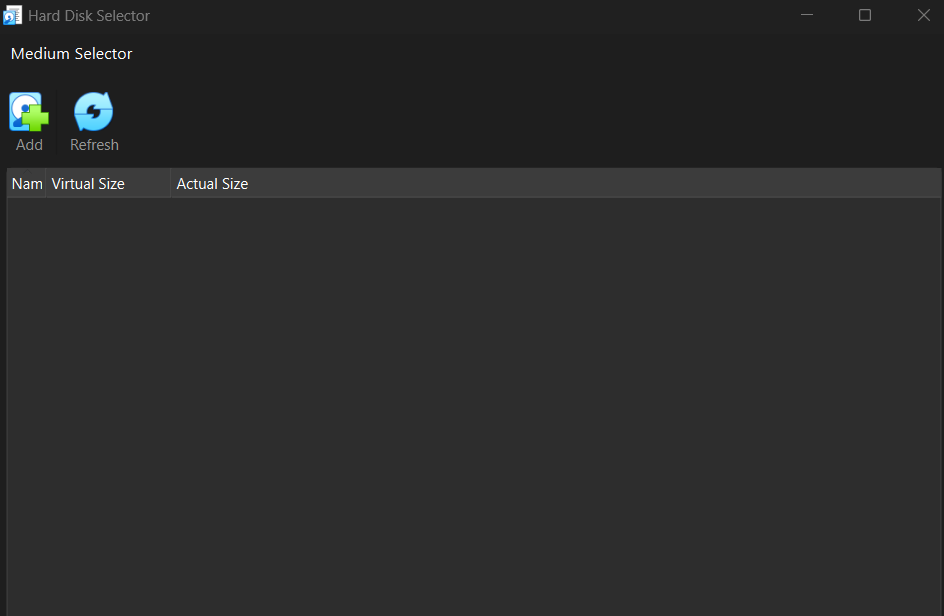
-
Click Finish and once it is done you will see the VM in the panel on the left.
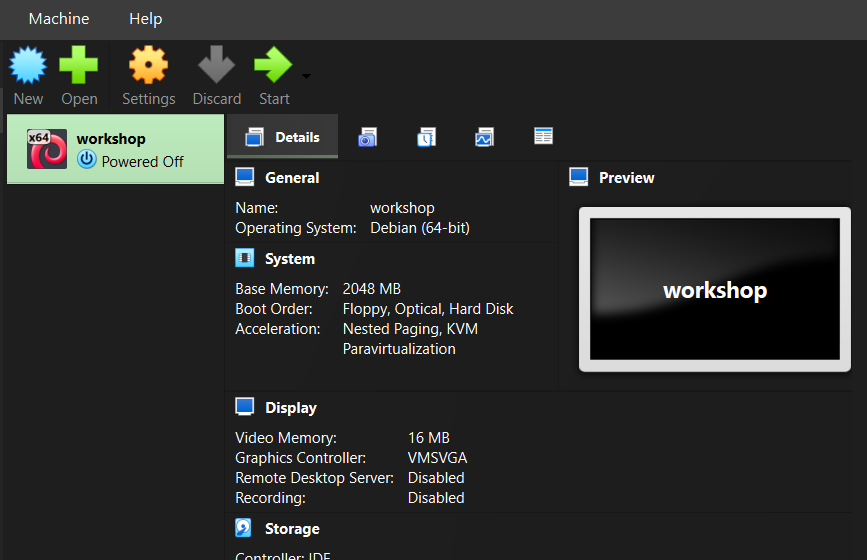
-
Go to the VM settings -> USB. Ensure the USB Controller is enabled and makes sure
USB 3.0 (xHCI) Controlleris checked.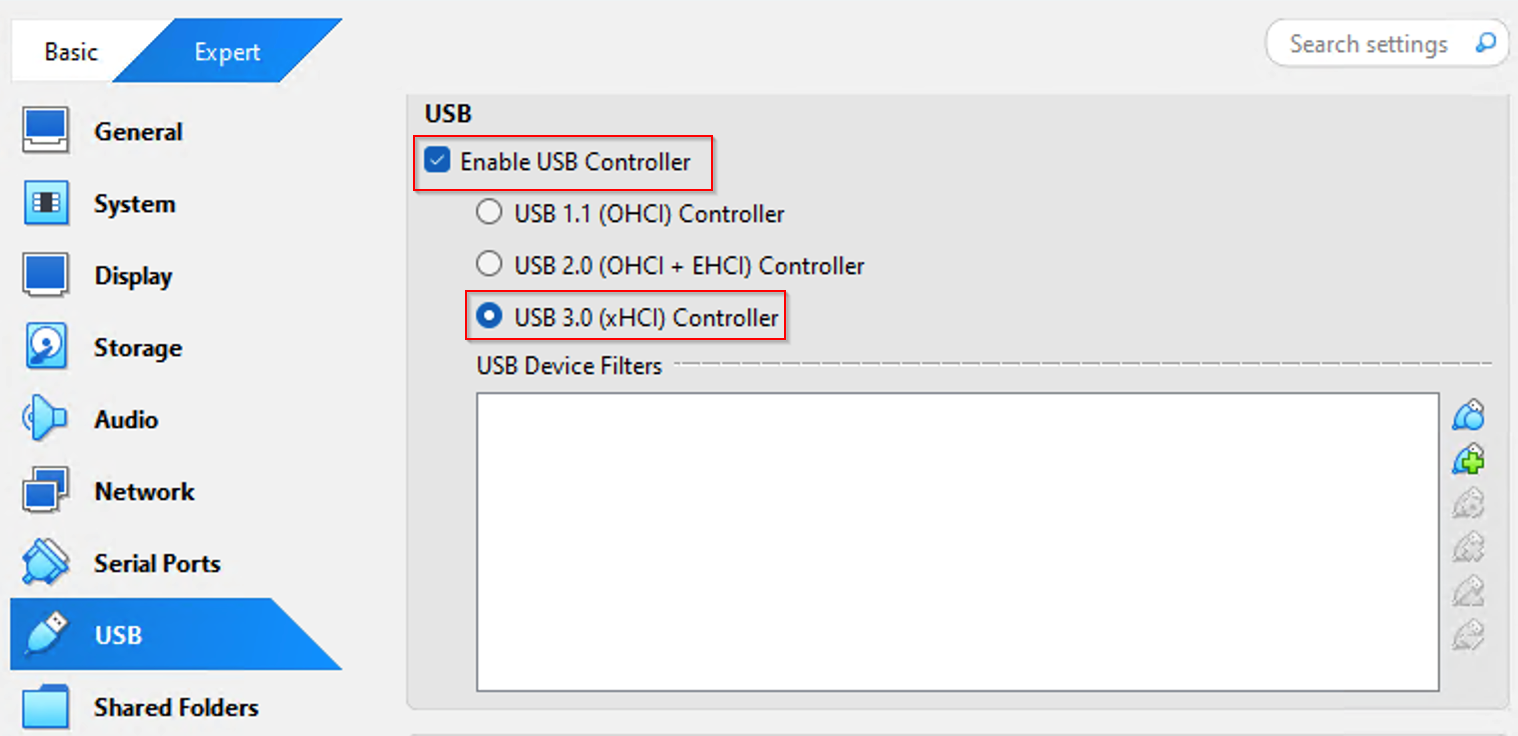
-
Click start .
-
Username
kali, passwordkali -
Navigate to Devices -> USB -> Select you wifi card, It will be listed by the driver
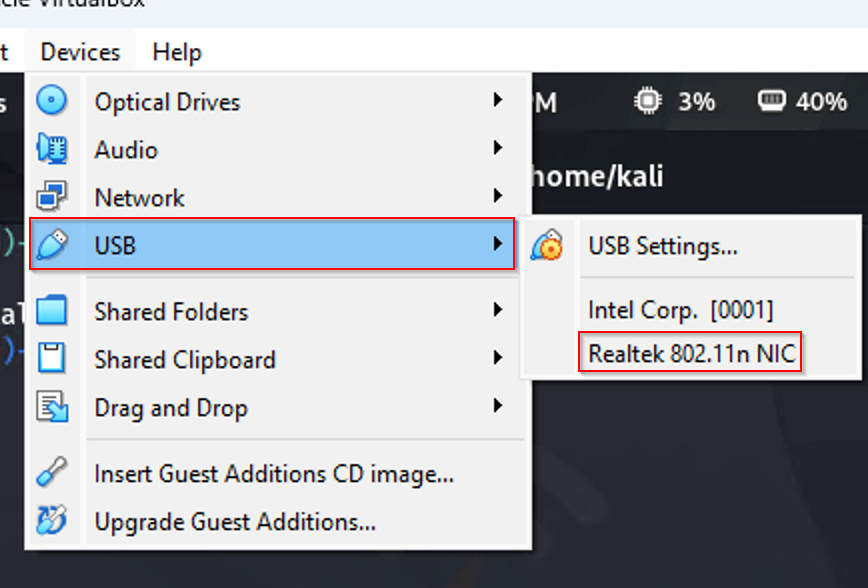
-
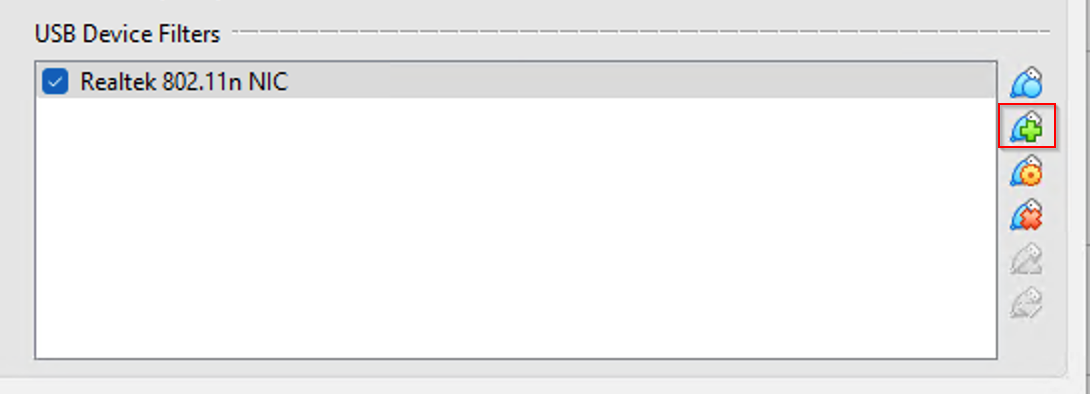
If step 12 doesn't work poweroff the VM. Go to the VM settings -> USB and add a USB Device Filter. Make sure your Wi-Fi card is plugged in. Click on the USB icon on the right side with a green
+.
-
Start the VM again.
-
Once you are logged in and the Wi-Fi card is connected to the VM Guest. Open a terminal and run:
iw devthe card should show up as wlan0
Vmware
-
Save the zip file to your drive.
-
Unzip
-
Open Vmware and click on in the home tab
Open a Virtual MachineNavigate to the folder you unzipped and select the .vmx file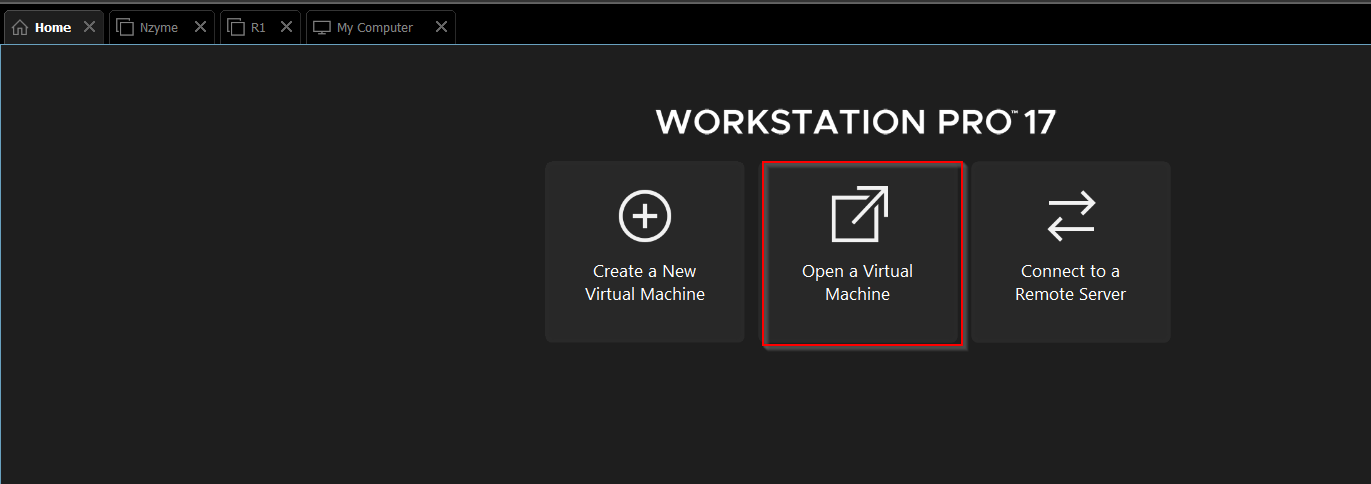
-
Before you start the VM, go to VM settings. Under the Hardware tab select
USB Controllerchange theUSB compatibilitytoUSB 3.1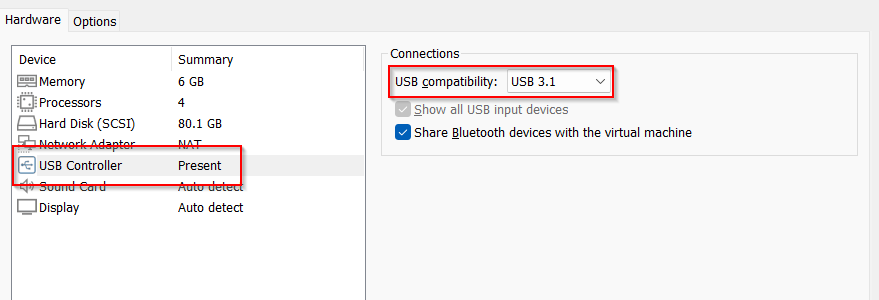
-
Start your VM.
-
Username
kali, passwordkali -
Connect your Wi-Fi card. It should prompt you to select where the USB device is going.
-
If you are not prompted to select where the card goes. Right Click on the VM tab at the top and click on the Removeable Devices and select the Wi-Fi Card.
-
Once you are logged in and the Wi-Fi card is connected to the VM Guest. Open a terminal and run:
iw devthe card should show up as wlan0
QEMU
-
If you scrolled this far you know how to virtualize like a g and that linux already has that virtualization goodness built in. Continue with the following steps while feeling superior to those vmware/vbox users before you.
-
Unzip the VM
-
These steps assume you're using
virt-manager, if you're on the CLI you don't need me -
File -> New Virtual Machine
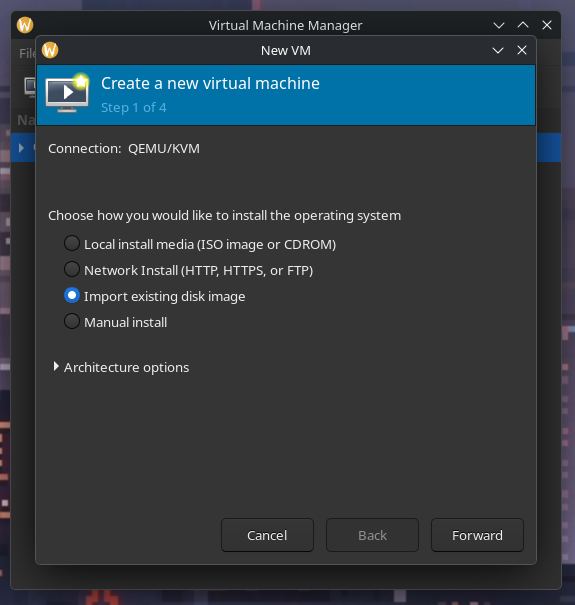
- Select disk image then select Choose Volume
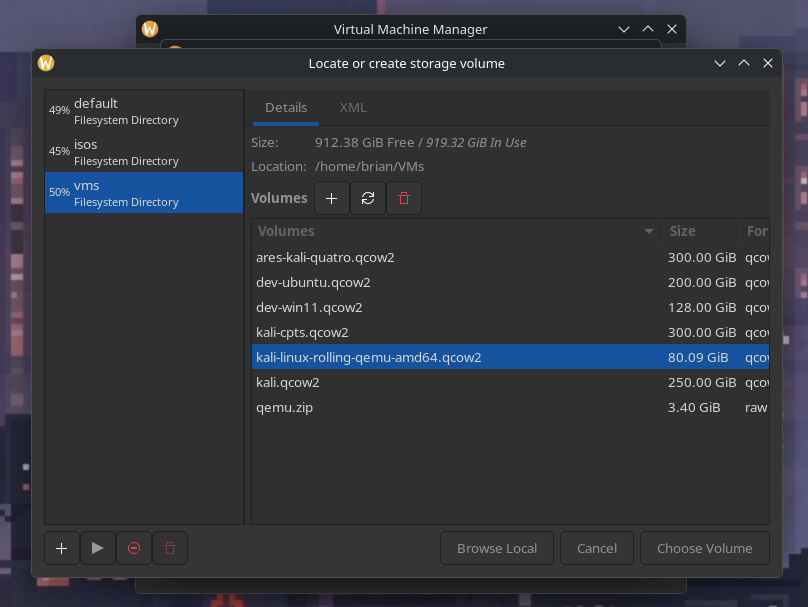
- Choose "Debian 13" under the choose operating system
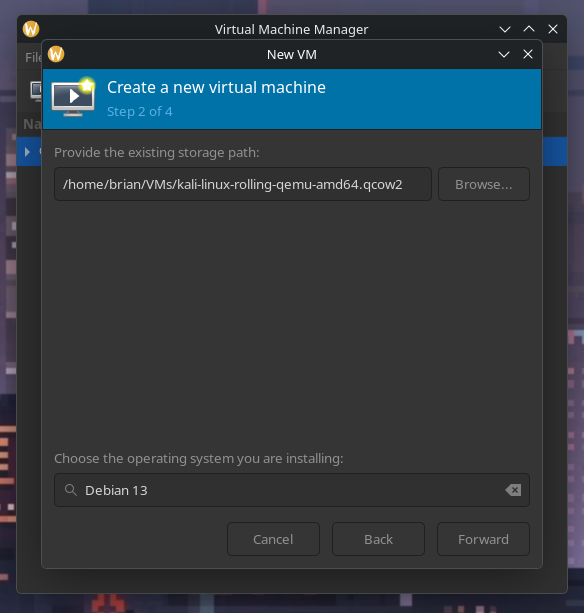
-
Select ram/cpu count
-
Username and password is
kali:kali -
From menu bar select Virtual Machine -> Redirect USB Device, then select your USB wifi adapter
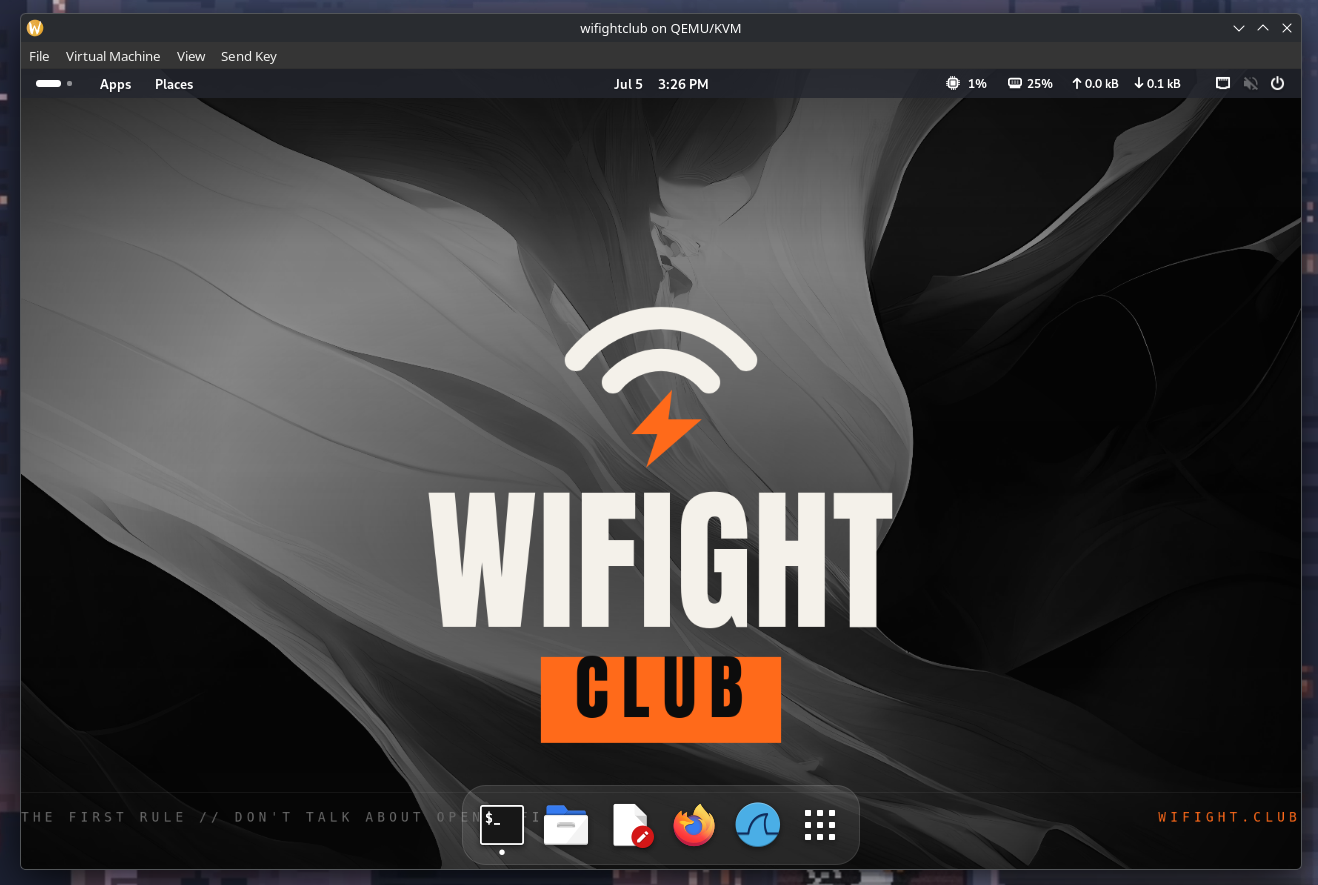
- Confirm the card is available with:
lsusb
iw dev- Hack
- Next →
Workshop Lab Guide